After a user creates an event in 25Live, sometimes things change. An event requester without permissions to change the Event State can ask for cancellation of the event.
Requesting a Cancellation
- Go to the Event Details. Tap or click an event name to open its details view. You can also search for an event or find it in your starred items on your home dashboard.
- Use the Request Cancellation link.
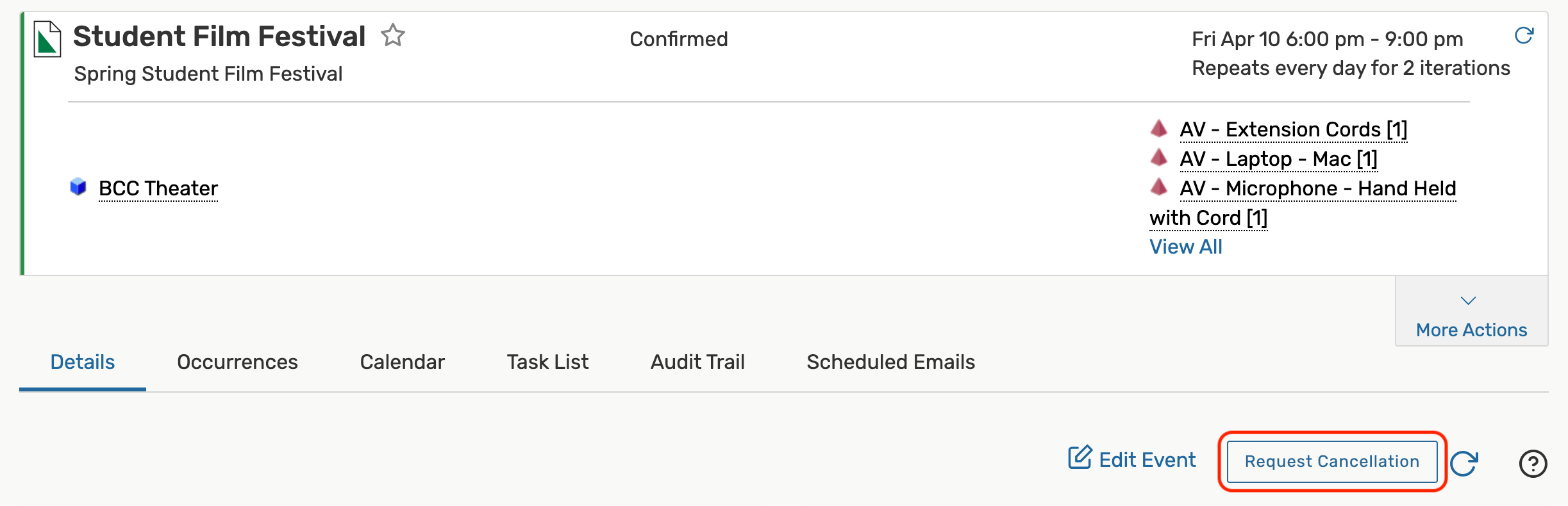
If displayed, use the Request Cancellation link, then enter a comment describing why you want to cancel the event.
Alternatively, if the Event State drop down with the Cancelled option is available but fails to complete, you may want to use the Request Cancellation link.
- Check the Tasks List.
If your cancellation request is successful, a "Cancel Request" task for the pending request will be included in the event's Task List for the scheduler or event owner to complete. If your event has both a scheduler and an event owner, the scheduler will be prioritized to receive the task.
NOTE: Cancelling releases locations and resources and limits editing.
When the event scheduler or event owner cancels the event, all location and resources assignments will be released. After that, only users with the required security permissions can edit a cancelled event.
Troubleshooting
If you don’t see the Request Cancellation link, do the following:
- Check to see that the event isn't already cancelled.
- Make sure there isn't a pending cancellation request on the event.
- Ask an administrator to re-check your user's permissions.
- Check your role in the event to be sure your user isn't listed as the scheduler or event owner (in which case, you may be able to cancel the event using the Event State).
The Task Didn't Appear for the Scheduler
- Look to see if the request cancellation link is visible in the Task List for the event.
- Try to request cancellation again if the request wasn't sent successfully previously.